

Using Kari (狩り), a PowerShell module I wrote, you can quickly hunt for suspicious Entra OAuth Apps that may indicate potential security threats within your Microsoft tenant. Malicious actors often create these applications to gain unauthorised access to bypass traditional MFA requirements, maintain access to critical resources and evade detection. This makes it crucial to monitor and investigate these registrations regularly.
What are Entra Apps? #
These Apps are essentially third-party (sometimes first-party) “applications” that are registered within your Microsoft tenant, created from a “service principal”.
Their main purpose is to allow users and services to authenticate with, gain and maintain access to resources within your environment via external methods. Some popular use cases involve: Utilising Entra as an SSO, integrating with SaaS applications (like Slack, Zoom, etc.), or enabling custom in-house applications to access Microsoft Graph APIs to interact with various Microsoft services.
As great as this all sounds, it quickly opens up potential security risks, especially when malicious actors create malicious apps to exploit this access, or exploit legitimate applications that have been poorly configured and/or secured. The bigger fish to fry here is that these apps (by default) can be added without admin consent, meaning that any user in your tenant can create them, and potentially grant them access to sensitive data or resources. Obviously admin access is required to access higher privileged scopes, but even low privilege scopes can be abused in various ways.
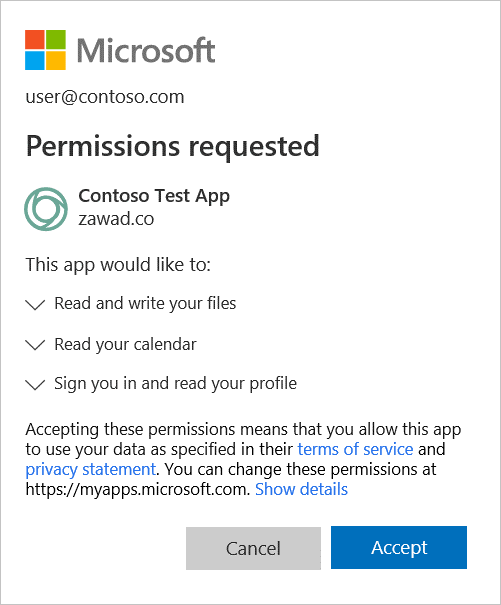
Image from Microsoft Learn
Getting Started #
To begin hunting, ensure you have the Kari Module and Microsoft Graph Module installed. If you haven’t got it yet, you can do so by running the following commands in PowerShell:
Install-Module 'Microsoft.Graph' -Scope CurrentUser
Install-Module 'Kari' -Scope CurrentUser
You also need to authenticate to your Microsoft tenant with specific permissions, which can be done via the Microsoft Graph Module.
Connect-MgGraph -Scopes "Directory.Read.All"Once connected, you can start using Kari. The main command you’ll be using is Invoke-KariHunt, which gets all your existing Enterprise Apps via Graph, then runs each against a set of predefined suspicious “indicators”.
Invoke-KariHunt
# Alias: ikh
The Criteria #
Here are some of the indicators Kari checks for:
- Known Rogue Applications: App IDs that are known to be used by attackers from HuntressLabs/RogueApps
- Temporary/Generic Applications: Apps with “temporary” style names, such as
test,trial, etc. - Names without Alphanumeric Characters: Apps with names that do not contain any alphanumeric characters (i.e. only symbols).
- Names that match an owner’s UPN: Apps disguised as user accounts.
- Apps with high privilege scopes: Apps that have been granted risky permissions.
- Apps older than 3 years: Apps that have existed for a long time, which may indicate stale or abandoned applications.
- Apps with expired secrets and certificates: Apps that have credentials that are no longer valid, which could indicate stale or abandoned applications.
If anything matches one or more indicators, they will be flagged as suspicious and output in a table format for further investigation:
PS C:\> Invoke-KariHunt | select DisplayName,IssueDisplayName Issue
----------- -----
Atlassian Old Application
Cloud Sync Old Application
Cloud Sync High Risk API Permission
Cloud Sync for SharePoint Old Application
Cloud Sync for SharePoint High Risk API Permission
Cloudflared ID Access Expired Secret
EngineeringHub Callback Redirect URITaking it further #
CSV Exports #
To export the results of your hunt to a CSV file for further analysis or reporting, you can easily pipe the output of Invoke-KariHunt to the Export-Csv cmdlet:
Invoke-KariHunt | Export-Csv -Path "C:\Path\To\Export.csv"Couple that with scheduled tasks, and you can have regular reports generated automatically.
Automation #
Since you may want to run this hunt regularly, consider setting up a scheduled task somewhere (like a jumpbox, server or admin workstation) to execute a script at defined intervals (e.g., weekly or monthly). This way, you can stay on top of any new suspicious apps.
The problem with this approach is that you’ll need to handle authentication to Microsoft Graph in a non-interactive way. One common method is to use a certificate-based authentication via an app registration that has the necessary permissions. Be sure to follow best practices for securing your credentials and access tokens, otherwise Kari could be flagging itself!
Once set up, you could have the results emailed or webhook’d to your ticketing system, Slack or Teams for review.
Import-Module Kari

Connect-MgGraph -Scopes "Directory.Read.All" `
  -ClientId "YOUR-APP-ID"
  -CertificateThumbprint "YOUR-CERT-THUMBPRINT"

$results = Invoke-KariHunt

if($results.Count -le 0){ exit 0 }

$ExportPath = "C:\Path\To\Export\Report.csv"
$results | Export-Csv -Path $ExportPath

# Finally, do something with the reportConclusion #
Regularly checking for suspicious apps is a crucial step in maintaining security within your Microsoft tenant.
Kari provides a straightforward way to automate this process efficiently against a list of known and common indicator criteria – However, always remember that no tool (including Kari) can replace thorough manual investigation and analysis. Use the results as a starting point for deeper dives into any flagged applications to ensure your environment remains secure.
Further Reading #
- Microsoft Learn | Apps & Service Principals
- Microsoft Learn | Investigate Risky oAuth
- Microsoft Learn | Graph Application Permissions
- Microsoft Learn | Add an Enterprise app